
Limit Login Attempts Reloaded
Our take
If you only add one security plugin, this is a good candidate: it guards the page bots attack most, the login screen, and stays light. Lockouts work out of the box and the free version now includes two-factor authentication. It does not scan for malware, so pair it with a scanner such as Wordfence if you need one.
Good
- Works the moment you activate it
- Free two-factor authentication
- Protects XML-RPC and WooCommerce logins too
- Very light on server resources
Watch out
- Login protection only, no malware scanning
- Cloud features and extra blocking are paid
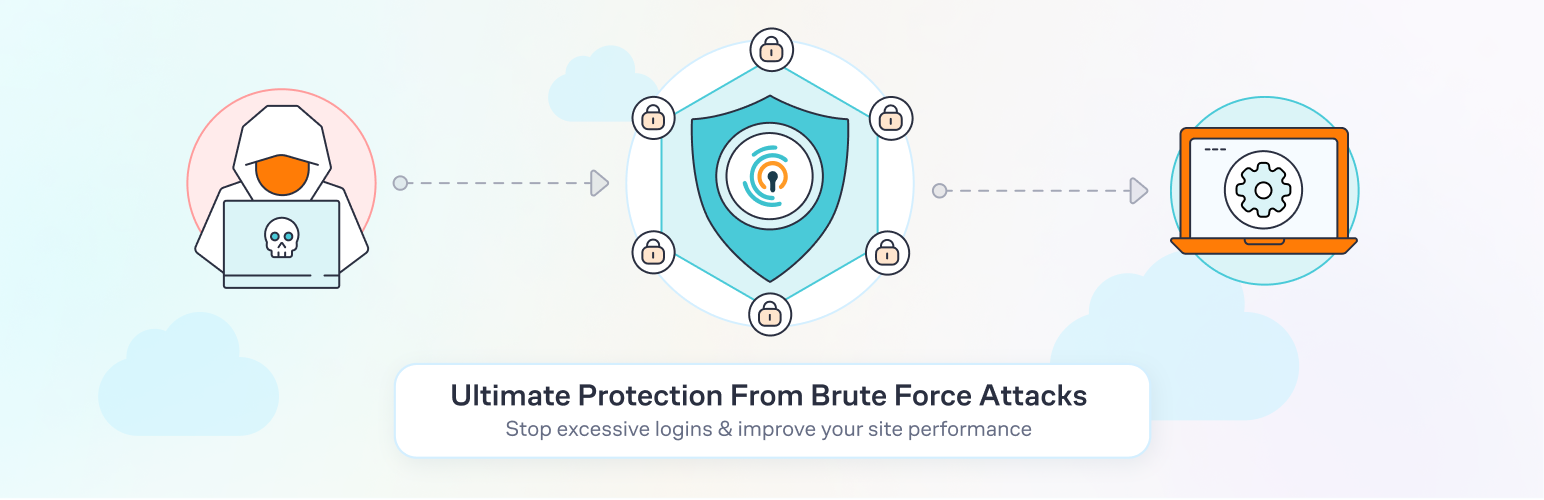
Out of the box, WordPress lets anyone try passwords on your login page as often as they like. Bots take advantage of that and guess thousands of username and password pairs per hour. Limit Login Attempts Reloaded closes that door: after a set number of failed tries, the IP address or username is locked out for a while, and repeat offenders are locked out for longer.
How it protects your login
The plugin watches the regular login form, XML-RPC requests and WooCommerce account logins. You decide how many attempts are allowed, how long a lockout lasts and when lockouts grow longer. A log shows which IPs and usernames were blocked, and you can allow or deny specific addresses.
Free features
- Limits on failed logins by IP and by username
- Adjustable lockout times and retry counts
- Two-factor authentication for users
- Protection for XML-RPC, WooCommerce and custom login pages
- Allow and deny lists, plus email alerts on lockouts
- Works on multisite networks
Install from your dashboard
In WordPress, go to Plugins, then Add New. Search for “Limit Login Attempts Reloaded” and click Install, then Activate.
Install from the zip file
Download the zip on this page. In WordPress, go to Plugins, then Add New, then Upload Plugin. Choose the file, click Install Now, then Activate.
Requires WordPress 5.0 and PHP any or newer.
How many login attempts should I allow in WordPress?
The default of four failed tries before a 20-minute lockout suits most sites. Lower it if you see many attacks in the log.
What if I lock myself out?
Wait for the lockout to expire, log in from another network, or rename the plugin folder over FTP to switch it off for a moment.